
The DPI number in your file is just a label. What decides sharpness is how many pixels you have per printed inch. Here is how to check the real number and fix a file that falls short.
You exported at 300 DPI. The print came back soft, or the print shop's uploader warned "resolution too low". The file says 300 DPI, so what went wrong?
Short answer: the DPI tag and the pixels you actually have are two different things, and only the second one prints. This happens most with Canva downloads, screenshots and phone photos, and it is fixable once you can see the real number.
A 300 DPI tag tells the printer: "place these pixels 300 to the inch." It says nothing about how many pixels there are. Two files can both say 300 DPI. One prints sharp; the other turns to blocks the moment you enlarge it:
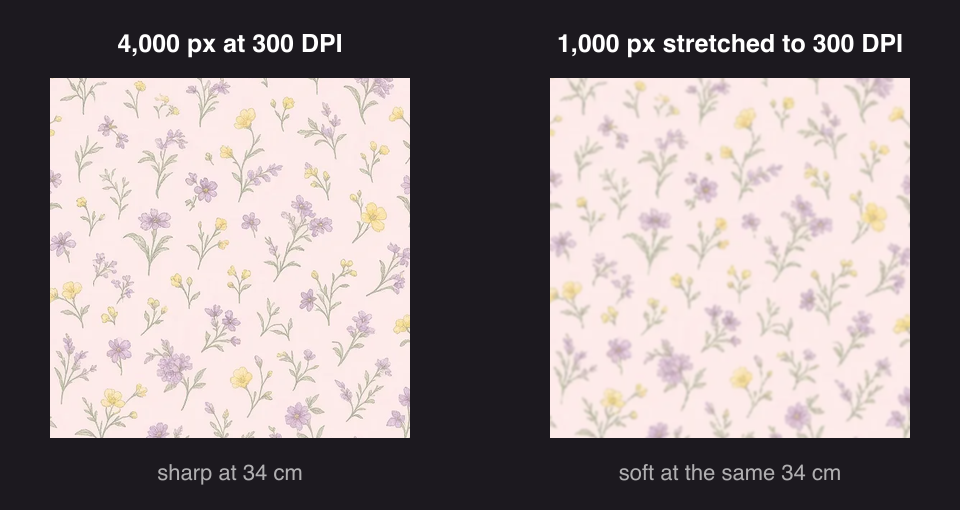
The math behind the picture:
Same label, very different prints. Changing the DPI number in a file never adds a single pixel. Export tools know this, which is why some of them quietly set 96 DPI (or no tag at all) and let the print software guess.
What a print actually gets is pixels ÷ printed size. Print 3,000 px across 30 cm (11.8 in) and you deliver 254 pixels per inch, which is sharp. Print the same 3,000 px across 100 cm (39.4 in) and you deliver 76 pixels per inch, soft at arm's length.
Rules of thumb that hold across print shops:
1. The Canva / browser export. Design tools export at the canvas pixel size, and the DPI tag depends on the export path, not your intentions. A 1,080 px Instagram canvas tagged "300 DPI" is still 1,080 px, about 9 cm wide at true 300 DPI.
2. The screenshot. Screenshots capture the screen's pixels, typically at 72 to 96 effective DPI. A "Retina" screenshot has more pixels than it looks, but nowhere near poster count. Printing one as a poster is enlarging a stamp.
3. The phone photo crop. A 12 MP phone frame starts around 4,000 px on the long edge, a solid 34 cm at 300 DPI. Crop to a quarter of the frame for composition and you have 1,000 px left; at 300 DPI that is 8.5 cm, no matter what the file's tag says.
Drop the file into our free DPI Checker. It reads the stored tag, and more importantly the pixel count, and shows the print size you actually get at 150 and 300 DPI. A file with no tag at all is normal; the pixels do the talking.
Planning a size first? The Print Size Calculator works the other direction: type the size you want, get the pixels you need, and check your image against it.
Print smaller or at a lower DPI. Sometimes the answer is arithmetic, not software: a 150 DPI poster from a step away looks every bit as good as 300 DPI in the hand. The calculator shows both.
Add real pixels with AI. When the size is fixed (a client's 140 cm tablecloth, a fixed pod-size upload), AI Upscale rebuilds detail to 2K, 4K or 8K without changing what's in the picture, and Print Resize rebuilds the whole image for an exact size in centimetres. One-time credits, cost shown before it runs, refunded if it fails.
What no tool can do is turn a 200 px thumbnail into a poster. The earlier in the pipeline you check the real number, the cheaper every fix gets.
No. The DPI tag only changes how software interprets the pixels you already have. Sharpness at a given print size comes from the pixel count. Increase DPI rewrites the tag when that is all a print shop's system needs; it adds nothing visual.
Divide your pixels by the intended print size in inches. At or above 300 for hand-held prints, 150 for posters, you are fine. The DPI Checker does this the moment you drop the file in.
Screens show about 96 pixels per inch and lean on glow and contrast. Print spreads the same pixels across more inches with none of that help: a 1,200 px image fills half a laptop screen but only 10 cm at print quality.
Most often it is a placed image that was scaled up on the canvas: Photoshop shows the document's 300 DPI setting, but the placed photo only carries its own pixels. A 800 px photo stretched across a 20 cm artboard prints at ~100 effective DPI no matter what the document says. Check the placed layer's actual pixel dimensions, or run the flattened export through the DPI Checker before sending it.
Not directly and not sharp; screenshots run 72 to 96 effective DPI. For a small framed print, maybe. For a poster, the file needs real added pixels, and that is exactly the AI Upscale use case.
For hand-held prints, no. 300 is the shop standard and the eye can't use more at reading distance. 600 DPI matters for fine line art and engraving. Extra pixels beyond what the size needs just make bigger files.
In practice, print shops use them interchangeably. Strictly, PPI (pixels per inch) describes your image data; DPI (dots per inch) describes the printer's output dots. Every number in this article is effectively PPI.
More Posts
What seamless actually means on a printed surface, four ways to make a repeating tile, and how to check the joins before you send a file to print.

The complete prep list for fabric printing: exact-scale setup, the pixels every repeat size needs at 150 and 300 DPI, the Spoonflower specifics, and the seamless check to run before you upload.