

Changing DPI is a one-minute fix once you know which of two problems you have: a missing tag, or missing pixels. Both fixes, step by step, with free tools.
The print shop asked for 300 DPI and your file says 72. Before changing anything, it helps to know that this request can mean two different problems, and one of them is not really a DPI problem at all.
This guide covers both: how to change the DPI tag (a 30-second fix), and what to do when the real issue is that your image doesn't have enough pixels for the size you're printing. The distinction decides whether your print comes back sharp or soft.
DPI, dots per inch, is instructions for the printer: place this image's pixels at 300 per inch of paper. It is a division instruction, not a quality setting. The pixels are already in the file; the DPI number decides how tightly they get packed onto the page.
That's why the same file can be print-ready or useless depending on size. A 2,400 × 1,600 px photo is:
Nothing about the file changed between those three rows. Only the division.
Problem 1: the tag is wrong. Your image has enough pixels, but the file says 72 or 96 DPI because phones, screenshots, and web exports write that label by default. A print uploader reads the tag and complains. Fix: rewrite the tag. It takes seconds and loses nothing.
Problem 2: the pixels are short. The print size is fixed (a 20 × 25 cm print, a client's spec) and pixels ÷ inches comes out under 300. Changing the tag does nothing here; the file genuinely lacks detail. Fix: add pixels (more on this below) or reconsider the size.
Quick test: divide your pixel width by the print width in inches. Over 300, you have problem 1. Under, problem 2. The DPI Checker does this math the moment you drop a file in, and shows both the stored tag and the real number at your target size.
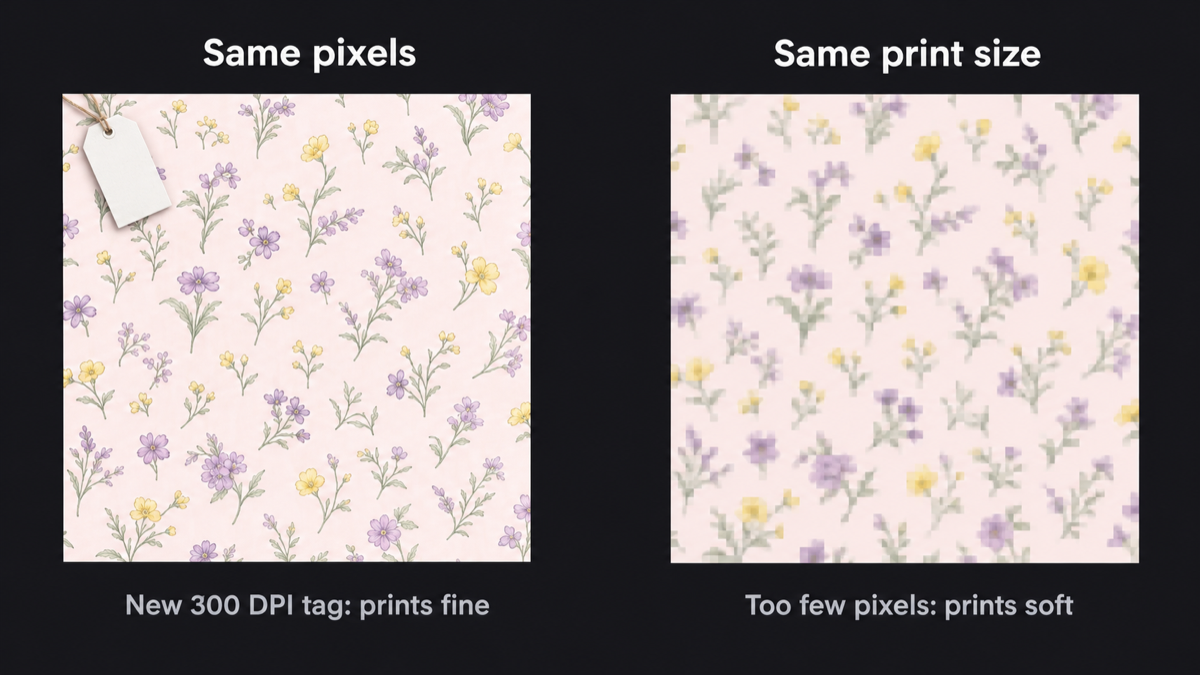
For problem 1, the Increase DPI tool rewrites the tag without touching a single pixel:
This runs in your browser, needs no sign-up, and puts no watermark on the file. The image itself is untouched, which is exactly the point. If the print size shown surprises you (smaller than expected), that's the tool telling you honestly that the pixels were short all along, and you actually have problem 2.
Photoshop: Image → Image Size, untick Resample, type 300 into Resolution. Unticking Resample is the whole trick: with it off, Photoshop changes the tag and keeps every pixel; with it on, Photoshop invents pixels and blurs the result.
GIMP: Image → Print Size, set the resolution. Same effect as Photoshop with Resample off.
macOS Preview: Tools → Adjust Size, change the resolution with "Resample image" unticked.
All three do the same thing the free tool does: rewrite a number. None of them add detail.
If the file needs to print at a size its pixels can't cover, you have three honest options:
Print smaller. A 1,200 px image makes a beautiful 10 × 7.5 cm print and a disappointing 20 × 15 cm one. Sometimes the size was negotiable all along.
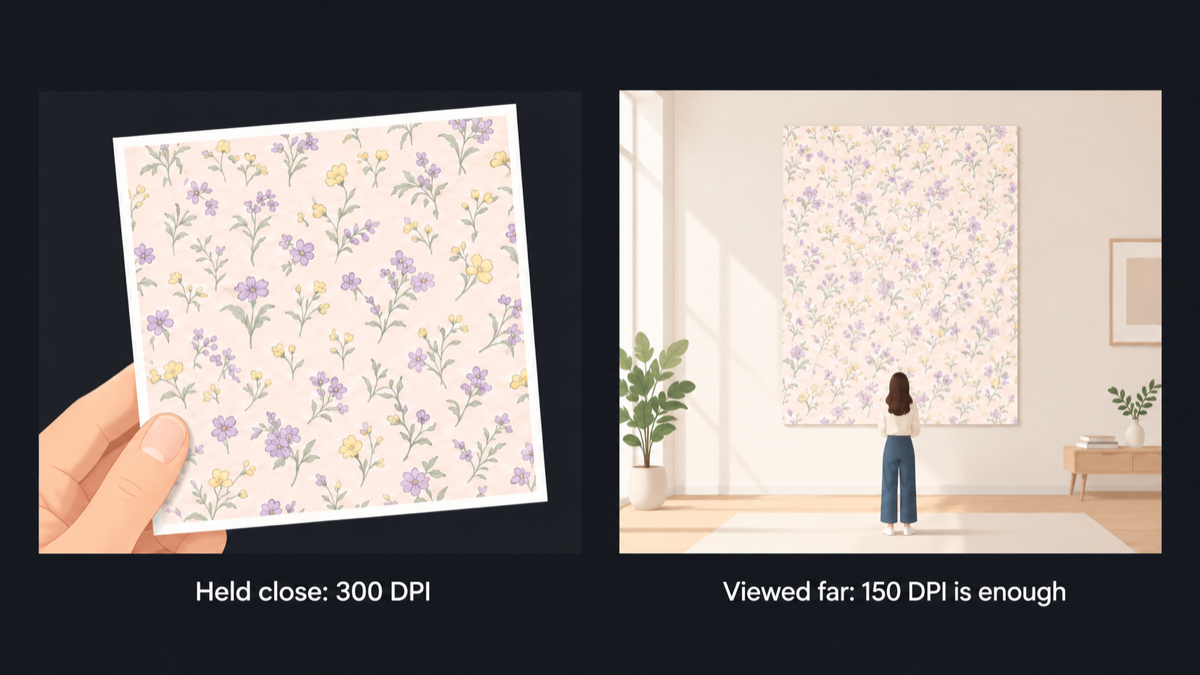
Accept fewer DPI. Viewing distance changes what's needed: 300 DPI for anything held in the hand, 150 for posters and wall pieces, 100 and below for banners read from across a room. A trade-show banner at 110 effective DPI looks fine from two metres. The Print Size Calculator shows what pixel count each size-and-DPI combination demands, so you can pick the cheapest combination that still looks right.
Add real pixels with AI upscaling. When the size is fixed and dropping DPI isn't acceptable, upscaling rebuilds the image with more pixels. AI Upscale takes one image up to 2K, 4K, or 8K. The cost is 1, 2, or 3 one-time credits, shown before you run, refunded if it fails. After upscaling, bring the file back to the DPI tool to set the final tag.
What no tool can do is make a 200 px thumbnail into a crisp A3. Upscaling adds plausible detail; it cannot recover detail the camera never captured. The lower the source, the softer the ceiling.
300 is the standard for hand-held prints, and it's the right default. But it's worth knowing the eye's limits: at arm's length, differences above 300 are invisible; at a metre, 150 looks the same as 300. Printers who ask for "300 DPI" on a two-metre banner are repeating a rule of thumb past its context. Match the DPI to the viewing distance and you'll save yourself a lot of unnecessary upscaling.
Yes. The free tool linked in Fix 1 above rewrites the tag in your browser, with no account and no watermark, and shows the resulting print size before you download. Desktop alternatives: GIMP (free) via Image → Print Size, or Preview on Mac via Tools → Adjust Size.
Not by itself. The DPI tag changes how pixels are distributed on paper, not how many exist. Quality at a given size comes from pixel count. A 3,000 px image prints sharp at 25 cm and soft at 100 cm regardless of its tag.
The tag change itself never changes print size: pixels ÷ DPI is the print size, so raising DPI with the same pixels makes the print smaller by definition. If the size must stay and the DPI must rise, the pixels have to increase first: upscale with AI, then set the tag.
300 DPI for photos, art prints, cards, anything viewed up close. 150 DPI for posters, banners, and fabric seen from a step away. 100 or below only for large signage read from a distance. Screens need no DPI at all; that's what 72/96 tags are for.
Cameras and phones often write 72, or nothing. The tag is a default label, not a verdict on your file. A 4,000 px phone photo tagged 72 DPI still prints 34 cm wide at true 300 DPI. Judge the pixels, not the label.
For photos and general prints, no. 300 is the standard and the eye can't use more at reading distance. 600 matters for fine line art, laser engraving, and some textile screening processes. If your printer asks for 600 on a photo print, it's worth asking why.
Rewriting the tag changes nothing in the pixels, so no. Quality loss happens when software resamples, inventing or discarding pixels to hit a number. Any tool that changes DPI without resampling (including the free one linked above) is lossless for the image data.
Drop your file into the DPI Checker to see the real number. Tag wrong? Fix it free in the Increase DPI tool. Pixels short? Decide between a smaller print, a lower DPI for the viewing distance, or an AI upscale, in that order, whichever is cheapest for your job.
More Posts
What seamless actually means on a printed surface, four ways to make a repeating tile, and how to check the joins before you send a file to print.

The complete prep list for fabric printing: exact-scale setup, the pixels every repeat size needs at 150 and 300 DPI, the Spoonflower specifics, and the seamless check to run before you upload.
The DPI number in your file is just a label. What decides sharpness is how many pixels you have per printed inch. Here is how to check the real number and fix a file that falls short.