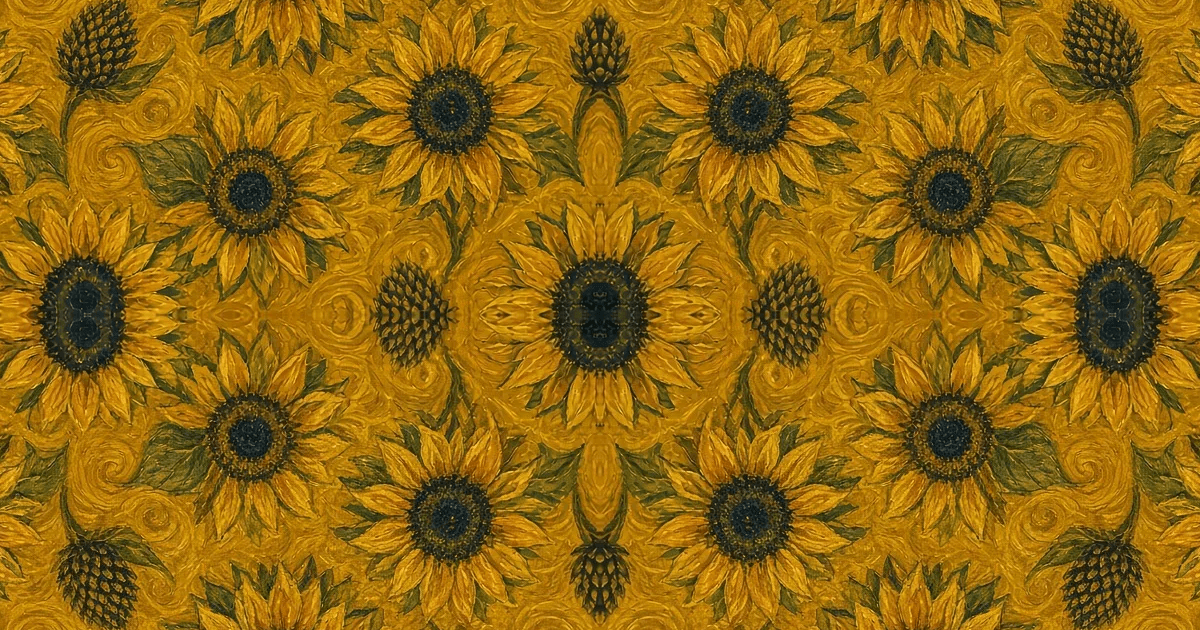

A 1024 px AI image is ~14 DPI on a 6-foot tablecloth. The effective-DPI math for any image, what upscaling actually adds, and the fix workflow.
Generated art, phone photos, logo files from a client: they all look sharp on screen and then arrive on cloth or paper as mush. The gap between the two is not a mystery: it is one division problem, and upscaling is how you close it when the division comes out ugly.
This guide covers the math (so you can predict blur before you pay to print), what upscaling actually adds versus what it pretends to add, and the workflow we use to take a small image to a print-ready file.
Screens and printers measure resolution in different currencies. A screen gives every image the same physical size. Your 1024 × 1024 AI generation and a 50 MP studio shot both fill the same window, so both "look fine". A printer gives every image your chosen physical size, and resolution is pixels ÷ inches.
Take a 1024 × 1024 image (the default output of most AI generators) and put it on a 6 ft (72 inch) banquet table:
1024 px ÷ 72 in ≈ 14 DPI
A cloth printer wants 150 DPI. Fourteen is a tenth of that; at normal viewing distance the pattern will read as smear. On a floor-length 90 × 132 cloth the same image is closer to 8 DPI. The image was never low quality. It was asked to cover ten times more physical area than it has pixels for.
Effective DPI = image pixels ÷ print size in inches. Compute it before any print decision. For reference, here is what common file sizes can cover:
| Image width | Max print at 150 DPI | Max print at 300 DPI |
|---|---|---|
| 512 px | 3.4 in (8.6 cm) | 1.7 in (4.3 cm) |
| 1024 px | 6.8 in (17 cm) | 3.4 in (8.6 cm) |
| 1536 px | 10 in (26 cm) | 5 in (13 cm) |
| 2048 px | 13.7 in (35 cm) | 6.8 in (17 cm) |
| 4096 px | 27 in (69 cm) | 13.7 in (35 cm) |
| 8192 px | 55 in (139 cm) | 27 in (69 cm) |
The same math explains the classic small-logo disaster. A 500 px logo stretched across the front of a 72 inch wide banner runs at about 7 DPI, and a logo is the one thing every viewer looks straight at. Logos, fine text and line art show upscale limits fastest, which is why they get their own note below.
The DPI Checker does this division for you. Drop the image, type the target size, and it shows the effective DPI before anything is printed.
Three things get sold as "fixing resolution". Only one of them works:
Honest limits of step 3: a model reconstructs plausible detail and cannot recover information that was never captured. In practice this is fine for fabric, patterns, scenery and product-style imagery, which is most of what gets printed large. The places to double-check after any upscale:
Work out the target pixels (inches × 150), upscale to at least that count with AI Upscale, then check the effective DPI at final size. For exact centimetre targets, rebuild with Print Resize instead of upscaling and cropping.
Model-based upscaling adds reconstructed pixels; it does not replace the ones you have. Quality depends on the source: clean, well-exposed sources upscale near-invisibly; heavy JPEG artifacts get amplified. The failure mode to watch is text and logos: inspect edges at 100%.
6.8 inches (17 cm) at 150 DPI, or 3.4 inches at 300. Anything larger needs an upscale first. On a tablecloth the same file runs at ~14 DPI, a tenth of the target.
You can, but check edges at 100% zoom afterwards. Logos are flat colour and hard edges, exactly where reconstruction drift shows. Wherever possible, go back to the vector source and export at target size instead; upscaling a raster logo is the second-best option.
Resizing changes how many inches your existing pixels cover. Upscaling adds pixels. Printing at size needs both: enough pixels, then a file that opens at the right physical size.
Find the effective DPI of your file at the size you need, upscale the pixels to cover it, and check the result before it reaches production. AI Upscale handles the pixel step from 2K to 8K, with the credit cost shown before it runs.
Further reading Tablecloth Size Chart: Inches, cm and Pixels to Print · Fabric Print File Preparation — Exact Size, DPI and Repeats · Why Your 300 DPI Image Still Prints Blurry · How to Create Seamless Patterns for Print
Recommended tool
Upscale an image for printing: 2K, 4K, or 8K output adds real pixels for large prints. Keep the same picture, or fix a blurry photo. You see the credit cost before it runs.
Open AI UpscaleAuthor
PrintResize Team
We build PrintResize and test every workflow in these guides on real print files.
More Posts
Every common tablecloth size for 6ft, 8ft, round and highboy tables, the drop math behind them, and the pixel dimensions each cloth needs at 150 and 300 DPI.
The complete prep list for fabric printing: exact-scale setup, the pixels every repeat size needs at 150 and 300 DPI, the Spoonflower specifics, and the seamless check to run before you upload.
The DPI number in your file is just a label. What decides sharpness is how many pixels you have per printed inch. Here is how to check the real number and fix a file that falls short.
What seamless actually means on a printed surface, four ways to make a repeating tile, and how to check the joins before you send a file to print.
Changing DPI is a one-minute fix once you know which of two problems you have: a missing tag, or missing pixels. Both fixes, step by step, with free tools.